
Key Takeaways: One UI 8 unlocks eight foldable-specific features most Galaxy Z Fold and Z Flip owners never discover. From smarter Flex Mode to built-in app pair management, these changes turn your foldable from a gimmick into a genuinely productive daily driver.
You just unboxed your Galaxy Z Fold 8 or Z Flip 8. The outer screen looks great. You fold it open, that inner display hits different, and you think, “This is the future.”
Then a week passes. You're still using it like a normal phone. The big inner screen? Mostly used for watching YouTube. You paid a premium for a device that folds, and you're barely scratching the surface.
The culprit? Most foldable owners never dig into One UI 8's foldable-specific features. Samsung built these tools directly into the OS, but they're buried behind settings menus most people never open. This article changes that.
We're covering every feature One UI 8 adds specifically for foldables, and how to activate each one for maximum productivity.

1. Flex Mode Gets Its Own Taskbar
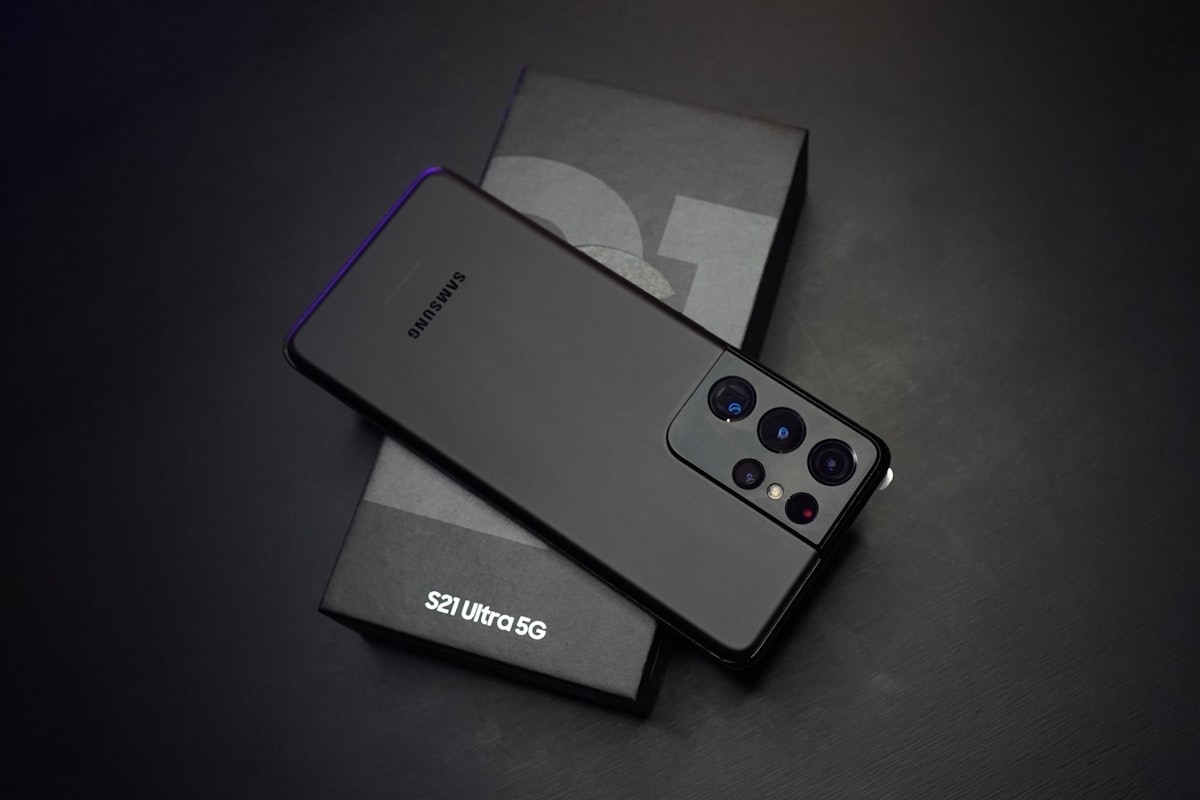
Here is the feature Samsung should have advertised on billboards. When you fold your Galaxy Z Fold at roughly a 90-degree angle and set it on a table, One UI 8 now shows a dedicated Flex Mode taskbar right at the bottom of the bottom half of the screen.
Before this update, Flex Mode was mostly a video-watching gimmick. The screen split in half, video played on top, and you got some basic controls below. Useful, but basic.
One UI 8 changes the game by giving that lower half a proper taskbar with app shortcuts. Open Google Meet in Flex Mode. The video feed dominates the top half while the bottom half shows your chat, participant list, and controls. It is genuinely closer to a laptop experience than anything else Samsung has shipped.

Try this: open any video call app, fold your phone into Flex Mode, and tap the bottom half. The taskbar appears with all your pinned apps. You can start a second app without leaving the call. This is the kind of feature that makes a foldable feel worth every penny.
2. App Pair Improvements (Finally)
App Pairs has existed on Samsung foldables for years, but in One UI 8, Samsung finally made it usable without frustration. The old version worked, but launching your custom app pair felt clunky. You had to long-press the app icon, find “Add to App Pair,” and hope it showed up where you expected.
In One UI 8, Samsung moved App Pair management into a dedicated section inside the Side Panel. Here is the part that matters for productivity users: you can now assign App Pairs directly to the taskbar.
Set up a Notes + Chrome pair for research sessions. Set up WhatsApp + Calendar for work coordination. One tap from the taskbar and both apps open side-by-side in your preferred split ratio. No more manually resizing every time.
- Long-press the taskbar area on your inner display.
- Select “Add App Pair.”
- Choose your two apps and hit save.
- Tap the App Pair icon on the taskbar whenever you need it.

This single workflow cuts the friction out of multi-tasking so dramatically that it changes how you approach your day. Instead of opening apps one at a time, you launch a workflow with one tap.
3. Staggered Grid Layout for the Flip Cover Screen
The Galaxy Z Flip's cover screen has always been limited. On the Z Flip 5 and 6, you could display a small handful of widgets and app shortcuts in a cramped grid. On the Z Flip 8, Samsung added the staggered grid layout that works more like a real home screen.
Before this, apps on the cover screen were displayed in a rigid, squished arrangement that felt like an afterthought. Enable the staggered layout and you get properly sized app icons with breathing room between them. It sounds minor, but using the cover screen for more than five minutes without feeling frustrated is a genuine quality-of-life improvement.
How to enable it: go to Settings > Display > Cover Screen > Layout Style and switch from “Basic grid” to “Staggered grid.” Done.

4. Multi-Window Window Groups Get Persistence
If you use your Fold for actual work, this one is going to save you a noticeable amount of time every single day. One UI 8 now remembers your window arrangements across sessions.
Previously, if you had three apps open in a specific arrangement and closed one, the remaining apps snapped to full screen. Your carefully constructed workspace was gone. In One UI 8, the remaining windows keep their relative sizes and positions as long as at least two apps stay open.
Combine this with the improved App Pairs feature, and you have a capable desktop-on-a-foldable workflow. Open a research session in the morning, close one tab, and the rest of your arrangement is still there when you come back.
5. Separate Lock Screen and Home Screen Wallpapers
This sounds cosmetic, and it is, but it solves a real frustration for foldable users. Before One UI 8, your lock screen and home screen wallpaper were linked. Change one, you changed both. Fine on a normal phone. Annoying when your Fold's inner and outer displays handle them differently.
One UI 8 lets you set independent wallpapers for the lock screen, home screen, and even the cover screen on the Z Flip series. Some users put a dark, minimal wallpaper on the Flip's cover for battery efficiency and a full-color image on the inner display. Small feature, but it shows Samsung is paying attention to foldable-specific use cases.
6. DeX Gets a Polish Pass
DeX has been Samsung's desktop mode for years, but One UI 8 brings a noticeable refinement when triggered from a foldable device.
Connect your Galaxy Z Fold to a monitor via a DeX hub or USB-C to HDMI adapter and you now get a more capable windowing system. Apps launched in DeX mode properly remember their window positions and sizes between sessions. Previously, every DeX session started fresh, which was infuriating for anyone using their Fold as a portable workstation.
App compatibility in DeX mode also improved. Apps that previously forced full-screen mode now behave properly in windowed arrangements. This DeX + S Pen + Multi-Window setup guide covers the full workstation replacement blueprint.
7. Smart Select Gets Foldable-Aware Capture
Smart Select is Samsung's built-in screen capture and text extraction tool. In One UI 8, Samsung added foldable-aware screen capture behaviors that understand the geometry of your device.
When you trigger Smart Select on a foldable, the capture area properly handles the fold line instead of splitting awkwardly in the middle of your screenshot. On One UI 7, the fold line frequently interfered with captures, creating unusable images. One UI 8 handles this cleanly.
The GIF capture tool also works in Flex Mode now. You can record a GIF right from the half-screen Flex Mode view and share it without unfolding. Small feature, but it feels thoughtful in a way that most software updates do not.
8. One UI 8 Foldable Features: Settings You Should Change Right Now
After testing One UI 8 on the Galaxy Z Fold 8, these are the specific settings worth changing immediately. Most people skip past them and leave value on the table.
- Settings > Display > Flex Mode layout – enable the enhanced taskbar. Non-negotiable for productivity.
- Settings > Advanced Features > App Pairs – set up three pairs for your most common workflows.
- Settings > Home Screen > Layout – switch the cover screen to staggered grid (Z Flip only).
- Settings > Display > Dual Window – enable “Keep windows in split view” to preserve arrangements.
- Settings > Wallpaper > Lock Screen – set an independent cover screen wallpaper for your Z Flip.
- Good Lock > MultiStar – unlocks per-app display ratios for the inner screen. This is the power user layer on top of everything else.

The Good Lock mention is deliberate. Samsung's Good Lock suite is free, officially supported in most regions, and it unlocks customization options that should be built into the OS. Installing Good Lock should be one of the first things you do after setting up any new Samsung device.
Frequently Asked Questions
Does One UI 8 work on older Galaxy Z Fold models?
One UI 8 is available on Galaxy Z Fold 5 and later, Z Flip 5 and later, including the Z Fold 8 and Z Flip 8. Older models like the Z Fold 3 and Z Flip 3 remain on One UI 7 and are not scheduled for the upgrade.
Is the staggered grid layout available on Z Fold cover screens?
No. The staggered grid layout is exclusive to the Z Flip series. The Z Fold's outer cover screen is wide enough for a traditional grid layout, so Samsung kept it as-is.
Can I use App Pairs in DeX mode?
Yes. App Pairs set up on your phone carry over to DeX mode. When you connect to an external display, the same paired apps open in a split-screen window arrangement. Pre-configuring your pairs before connecting to a monitor is the fastest way to get a productive desktop session running.
Does Good Lock slow down my foldable?
Not in any meaningful way. Good Lock modules are lightweight system customizers. Running Good Lock with MultiStar and other modules active on a Z Fold 8 shows no measurable performance impact. The customization benefits far outweigh any minimal overhead.
The Bottom Line
One UI 8 does not introduce a single revolutionary foldable feature. Instead, it delivers eight smaller improvements that compound into something genuinely impressive. Flex Mode with a taskbar, persistent window arrangements, better App Pairs, smarter screen capture, independent wallpapers, and a refined DeX experience. Each one alone would feel minor. Together, they make your foldable feel like the device Samsung originally promised.
The biggest takeaway: if you upgraded to a Galaxy Z Fold or Z Flip and you have not spent thirty minutes in Settings scanning through the Advanced Features and Display menus, you are leaving a lot of value on the table. Go through the checklist above, enable what applies to your device, and see how your daily workflow changes.